
How to report a Flock camera and add it to the map.
Found a license plate camera that is not on the map? Check that it is one, then add it from your iPhone. It goes into OpenStreetMap, where every camera map can use it.
First, check that it is a license plate camera
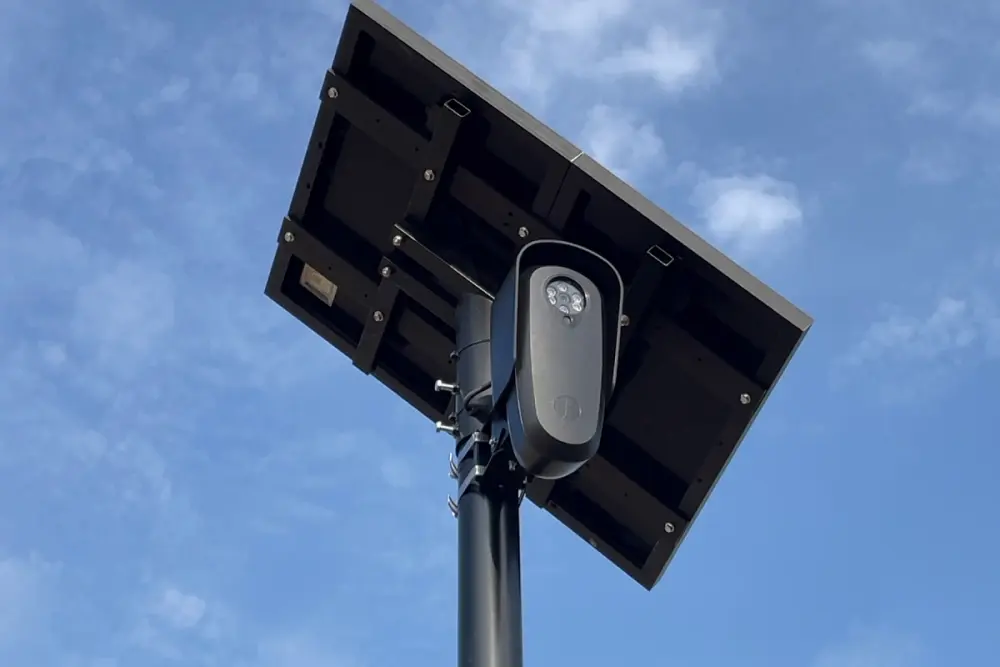
Four out of five mapped cameras are Flock. Look for three things:
- A small gray or black camera box on its own pole, usually ten to twelve feet up, pointed at the lane.
- A solar panel on top of the same pole. Most Flock cameras run on one.
- Placed at intersections, neighborhood entrances and parking lot exits, facing the cars coming in or going out.
Other brands look different. The camera map page has a photo of each, and the app shows them when you pick the type.
Cameras that do not belong on this map
- Speed and red-light cameras
- Large boxes, often with a separate flash unit, aimed at an intersection or a stretch of road. They are mapped as enforcement cameras.
- Traffic signal sensors
- Small cameras on the arm that holds the traffic lights. They tell the signal a car is waiting.
- Toll readers
- Mounted on gantries over a toll road.
- Security cameras on buildings
- Domes and bullet cameras on walls and roofs that watch a property, not the road.
Add it from your iPhone
FlockHopper for iPhone adds cameras straight to OpenStreetMap, the open map the camera data comes from. You need a free OpenStreetMap account.
- Update FlockHopper on your iPhone to version 2.1 or later.
- On the map, tap Add Camera.
- Slide the map until the red ring sits on the camera. The pin stays still and the map moves under it.
- Tap the map where the camera points, or drag the tip of the cone. If the pole holds two cameras, add a second direction.
- Pick the camera type. Flock Safety is one of seven, and the info button shows photos of each.
- Add the mount, the power source or a note if you know them. All of these are optional.
- Tap Add. The first time, sign in with OpenStreetMap or create a free account on openstreetmap.org.
- You get five seconds to undo. Then the camera goes to OpenStreetMap. With no signal, it waits and sends when you are back online.


Fix or remove a camera
Cameras get moved, turned and taken down. If one on the map is wrong:
- Tap the camera on the map.
- Move it, change the direction or the type, then tap Save Changes.
- If the camera is gone, tap Delete Camera and pick the reason: removed, duplicate, not a license plate camera, or spam.
On Android or a computer
The Android app does not edit the map yet. Tap a camera and follow the report link, which opens DeFlock's reporting tool, or go to deflock.org/report on any phone or computer.
On a computer you can also add the camera in OpenStreetMap's own editor: sign in, choose Edit, place a point and give it the tags below.
The tags, for OpenStreetMap mappers
These are the tags FlockHopper writes for a Flock camera. They follow the OpenStreetMap wiki. Other brands change only the two manufacturer tags.
man_made=surveillancesurveillance:type=ALPRsurveillance=publicsurveillance:zone=trafficcamera:type=fixedmanufacturer=Flock Safetymanufacturer:wikidata=Q108485435direction=the compass bearing it faces, in degrees
House rules
- Only add a camera you have seen yourself, and put it where the camera is.
- Leave personal information out of notes and tags.
- Everything you send to OpenStreetMap is public and permanent, and carries your OpenStreetMap username.
- Other mappers may correct or remove a change. That is how the map stays accurate.
Questions
- Do I need an account?
- Yes, a free OpenStreetMap account. You sign in on openstreetmap.org in a sheet the app opens, and FlockHopper never sees your password. You need it only to add, correct or remove cameras.
- How long until the camera shows up?
- Every FlockHopper iPhone user sees it within minutes. Android users get it with the next daily update, and the camera map on this site counts it within a day.
- Is it anonymous?
- No. Every change on OpenStreetMap is public and carries the username of the account that made it. Pick a username you are comfortable showing.
- What if I added one by mistake?
- Tap Undo in the first five seconds and nothing is sent. After that, tap the camera and delete it, or move it to the right spot.
- Does it matter which app I use?
- No. FlockHopper, DeFlock and the OpenStreetMap editors all write to the same map, and every app that reads OpenStreetMap picks the camera up.
Get FlockHopper.
See every mapped camera on your phone, get a warning before you pass one, and add the ones you find. Free on iPhone and Android, no account needed to drive.
See every camera by state, or email us if you get stuck.